The 3D Design Exchange brings 3D designs into your Microsoft PowerPoint
presentations. It loads data exchanges from your Autodesk Forma
(formerly Autodesk Construction Cloud) projects, from Autodesk Revit,
Autodesk Civil 3D, Autodesk Inventor and 150+ more design applications,
and places them in your slides as 3D models you can pan, zoom and rotate
while you present. You share object-level design data with your team
and stakeholders, without sending model files or asking them to use the
design software.
The connector comes as two apps from CCTech on the Autodesk App Store:
3D Design Exchange: the PowerPoint add-in that you install on
your computer.
Autodesk App Store
3D Design Exchange Connector: a free app that your account
administrator adds to your Autodesk Forma account. It gives the
add-in read access to project information such as 3D geometry.
Autodesk App Store
This application is currently supported only on the Windows operating
system, and requires Microsoft PowerPoint.
A Data Exchange represents a subset of a design stored in a neutral
format in the cloud. It gives access to the relevant geometry and
properties of a model, as a whole or at a granular level, without
exposing the source model files. Design teams create data exchanges from
the applications they work in, and save them to their Autodesk Forma
projects. The 3D Design Exchange reads those data exchanges and shows
them in PowerPoint.
| Operating System |
Windows |
| Presentation software |
Microsoft PowerPoint (desktop) |
| Autodesk account |
Autodesk Forma (formerly Autodesk Construction Cloud) licence |
An Autodesk Forma licence, to access the Autodesk Docs
projects.
Your account administrator has added you to at least one
project.
View + Download permission or higher on the folder
that holds the data exchange you want to load.
The 3D Design Exchange Connector app is added to your
Autodesk Forma account (see Set up your account below).
An account administrator does this once for the whole Autodesk Forma
account.
In Autodesk Forma, open Account Administration and go to the Apps tab.
Search for the 3D Design Exchange Connector app.
Select it and click Add to BIM 360.
The 3D Design Exchange Connector integration is now active in your account.
Note: The 3D Design Exchange uses its own installer, not
the standard App Store installer. Close Microsoft PowerPoint before you
install or uninstall it. You may need to restart PowerPoint or your
computer after installation.
Read the system requirements and prerequisites above.
Make sure Microsoft PowerPoint is closed.
Double-click the downloaded 3D Design Exchange installer.
Click Next, then Install to confirm.
Click Finish after the installation completes.
The 3D Design Exchange button needs macros to be enabled. If the button
is not visible on the Add-ins tab, or does not work, check these
settings.
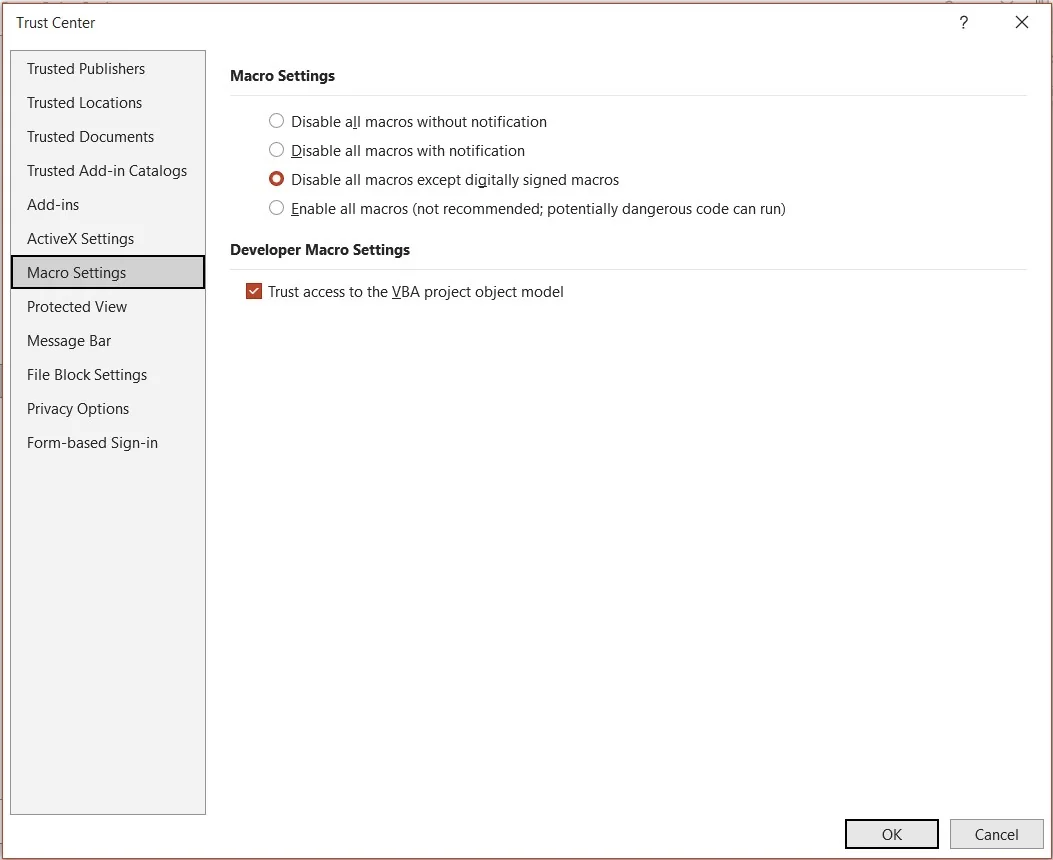
In Microsoft PowerPoint, click File, then Options, then Trust Center.
Click Trust Center Settings...
Go to Macro Settings.
Allow macros and select Trust access to the VBA project object model, then click OK.
Microsoft's help:
Enable or disable macros in Microsoft 365 files.
Open Microsoft PowerPoint and go to the Add-ins tab.
Click 3D Design Exchange. You are taken to the Autodesk sign-in page.
Sign in with your Autodesk Forma credentials and allow access.
Go back to PowerPoint. The 3D Design Exchange panel opens, ready to load data exchanges.
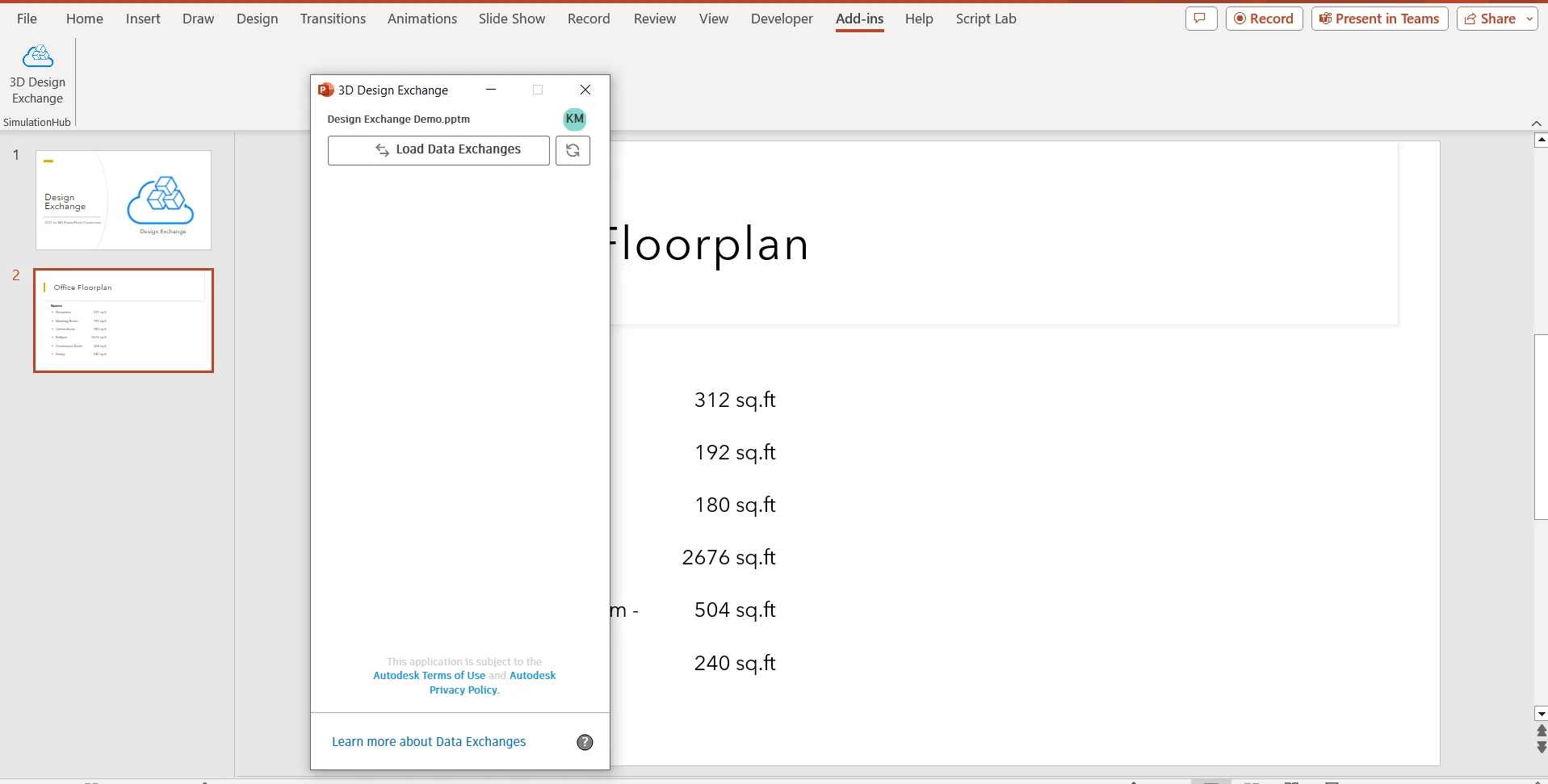
Open the slide where you want the model.
In the 3D Design Exchange panel, click Load Data Exchanges.
In the window that opens, browse your projects and folders, and select the data exchange you want.
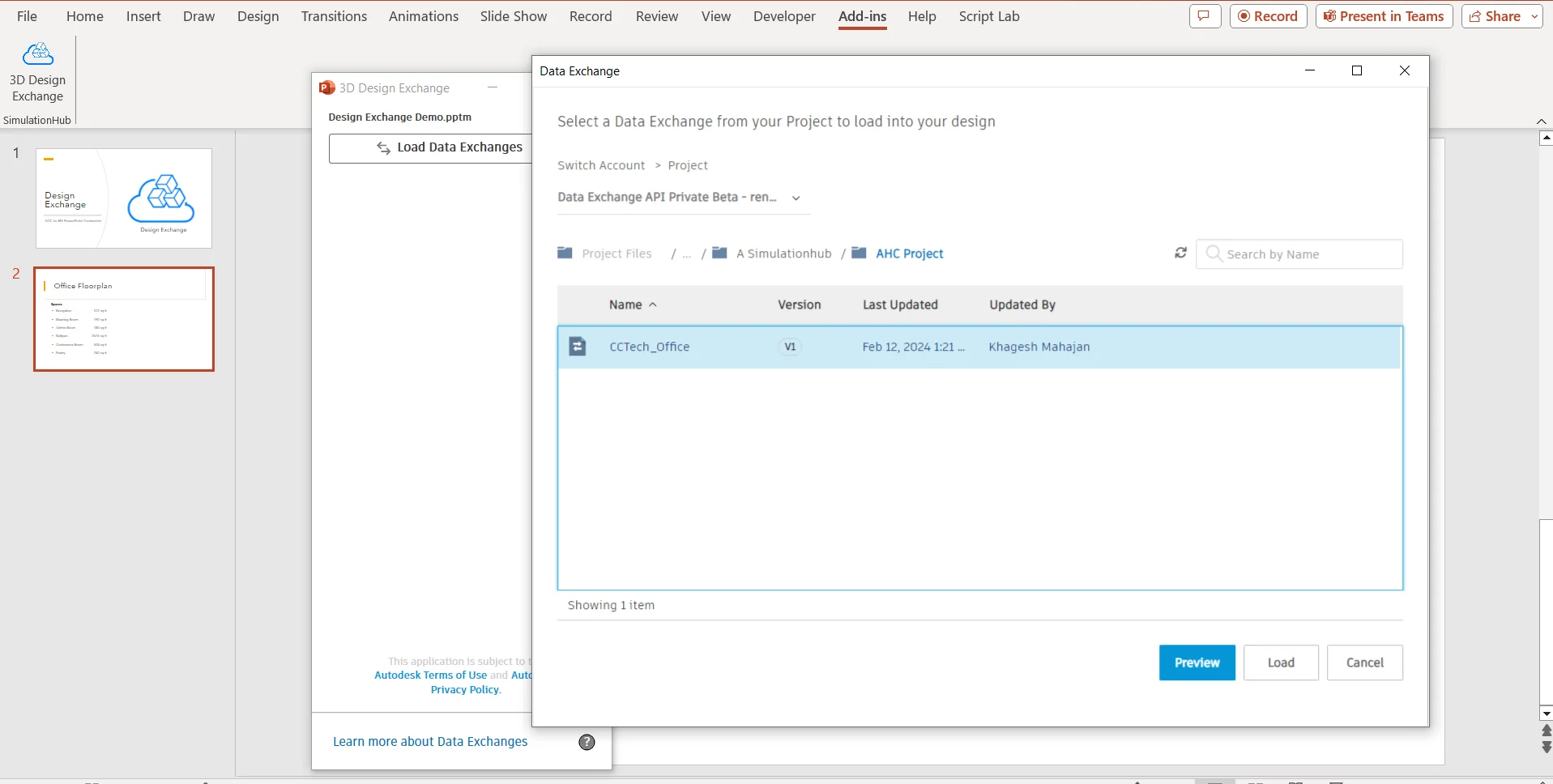
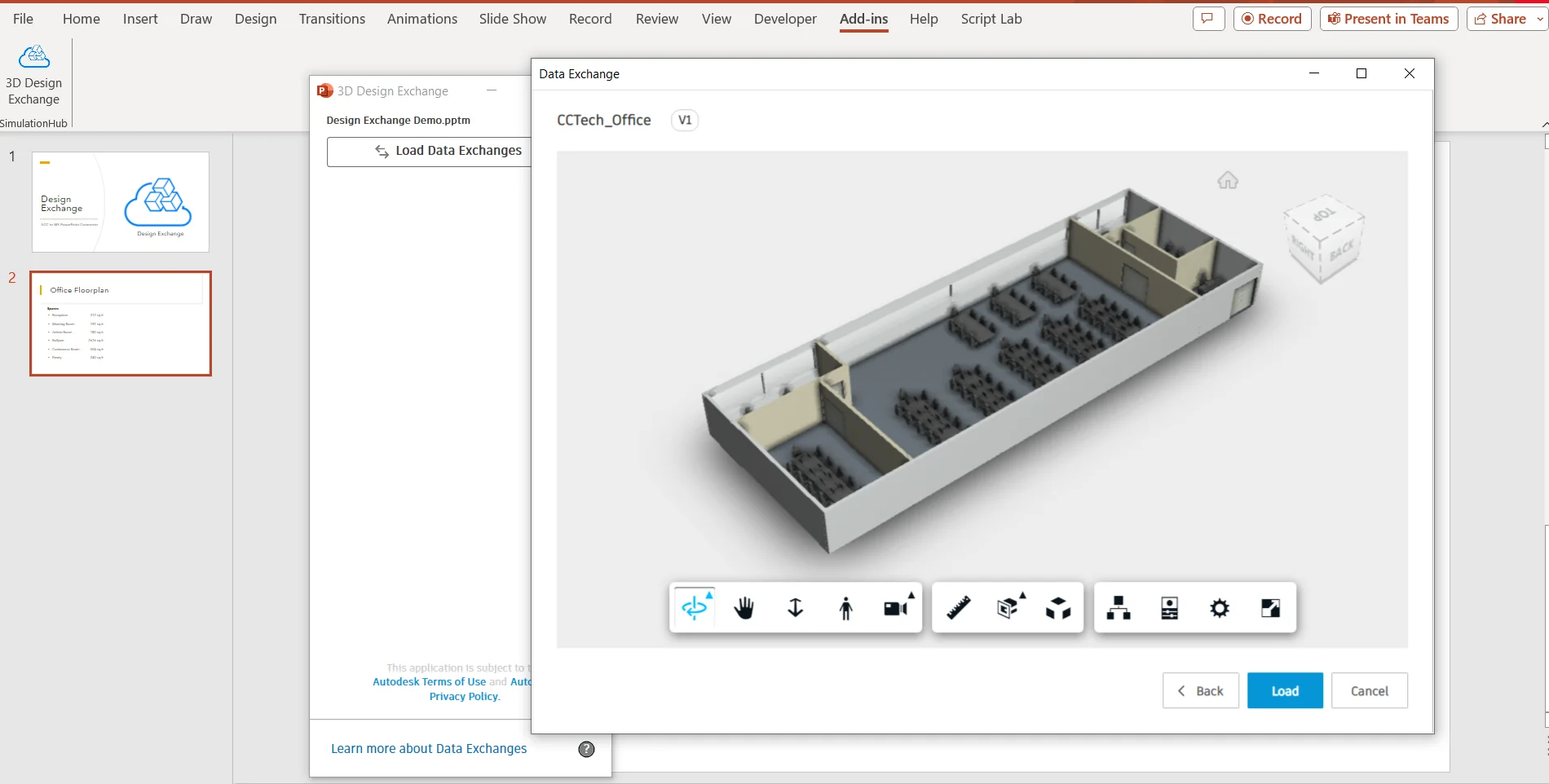
Click Preview to check the model in the 3D viewer.
Click Load. The data exchange is downloaded and placed in your slide.
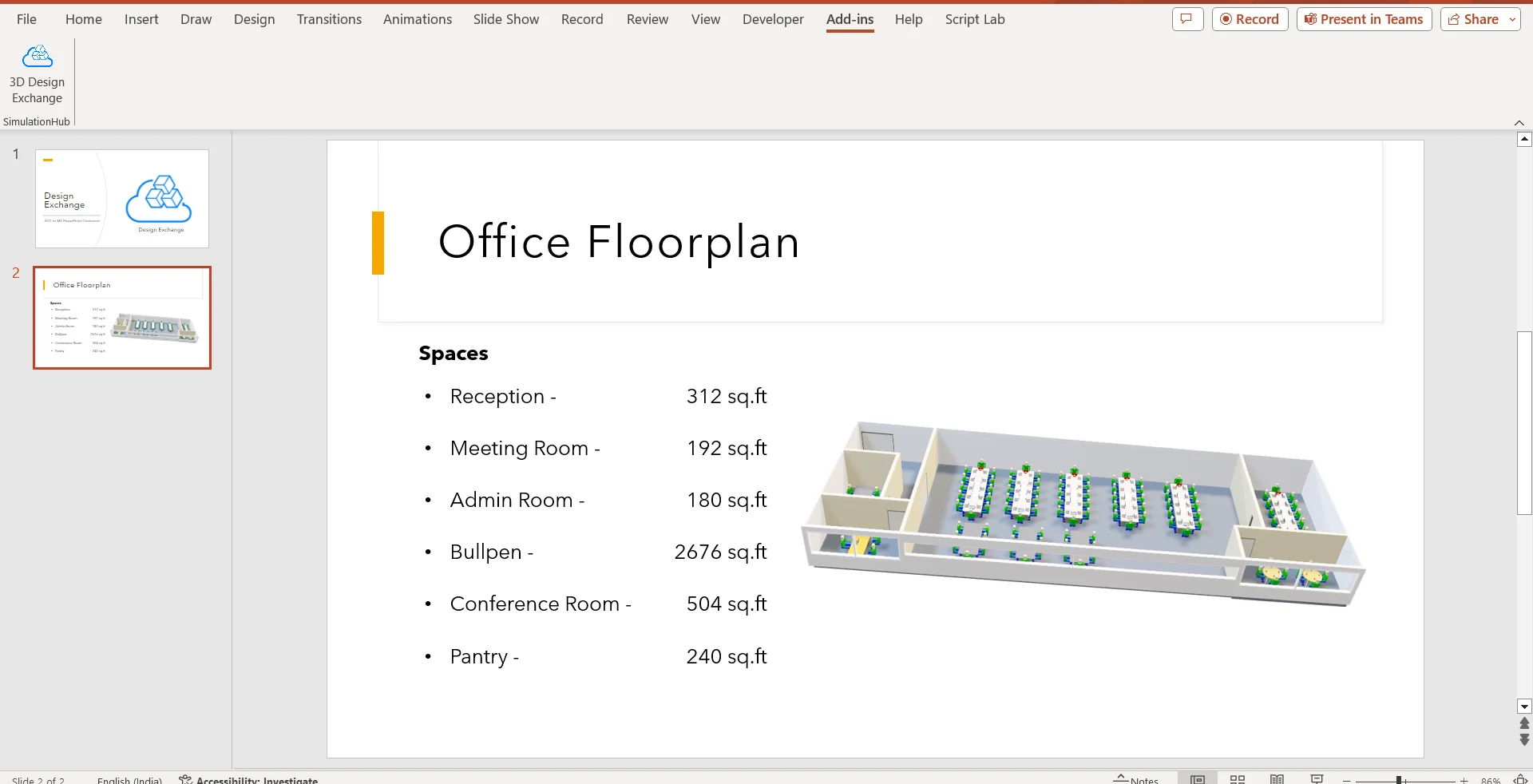
The model sits in your slide next to your content. Pan, zoom and rotate
it while you present.
Make sure Microsoft PowerPoint is closed.
Open the Control Panel from the Windows search bar.
Go to Programs > Programs and Features.
Select 3D Design Exchange from the list.
Click Uninstall and confirm with Yes.
Click OK after the uninstallation completes.
Loading large exchanges that contain sheet metal and solid bodies can make PowerPoint unresponsive.
Geometry colours may be missing on some loaded exchanges.
2D AutoCAD drawings do not appear.