

Overview
CCTech’s IFC Exporter for AutoCAD Plant 3D lets you export intelligent plant models from Plant 3D drawings directly to IFC2X3 (.ifc) files. You can share geometry, Plant 3D object classes, and property data with downstream BIM tools, without the manual EXPORTTOAUTOCAD workflow that turns plant objects into generic solids.
The exporter runs inside AutoCAD Plant 3D 2024, 2025, 2026, and 2027 on Windows. Each Plant 3D release has its own installer. Use the Export to IFC dialog to choose what to export, where to save the file, and start the export.
What is an IFC export?
An IFC (Industry Foundation Classes) file is an open, vendor-neutral exchange format for built assets. For plant projects, an IFC export captures:
Typical uses include coordination with architectural and structural models, clash detection, openBIM deliverables, design review in viewers, and handover to owners and operators.
This release writes IFC2X3 files suitable for coordination workflows (for example, opening in Navisworks, ACC, or Revit).
System Requirements
Software
| Operating system | Windows 10 or 11 (64-bit) |
| Host application | AutoCAD Plant 3D 2024, 2025, 2026, or 2027 (product series R24.0, R25.0, R25.1, or R26.0). Install the exporter that matches your release. |
| Exporter version | 0.9.6.0 or newer (shown under Help → Exporter Version in the dialog) |
| Runtime | Matches your Plant 3D release: .NET Framework 4.8 (2024), .NET 8 (2025 and 2026), or .NET 10 (2027) |
Prerequisites
Install
CCTech's IFC Exporter for AutoCAD Plant3D_{ApplicationVersion}_{ExporterVersion}.exe (for example, CCTech's IFC Exporter for AutoCAD Plant3D_2025_v1.0.0.exe for Plant 3D 2025).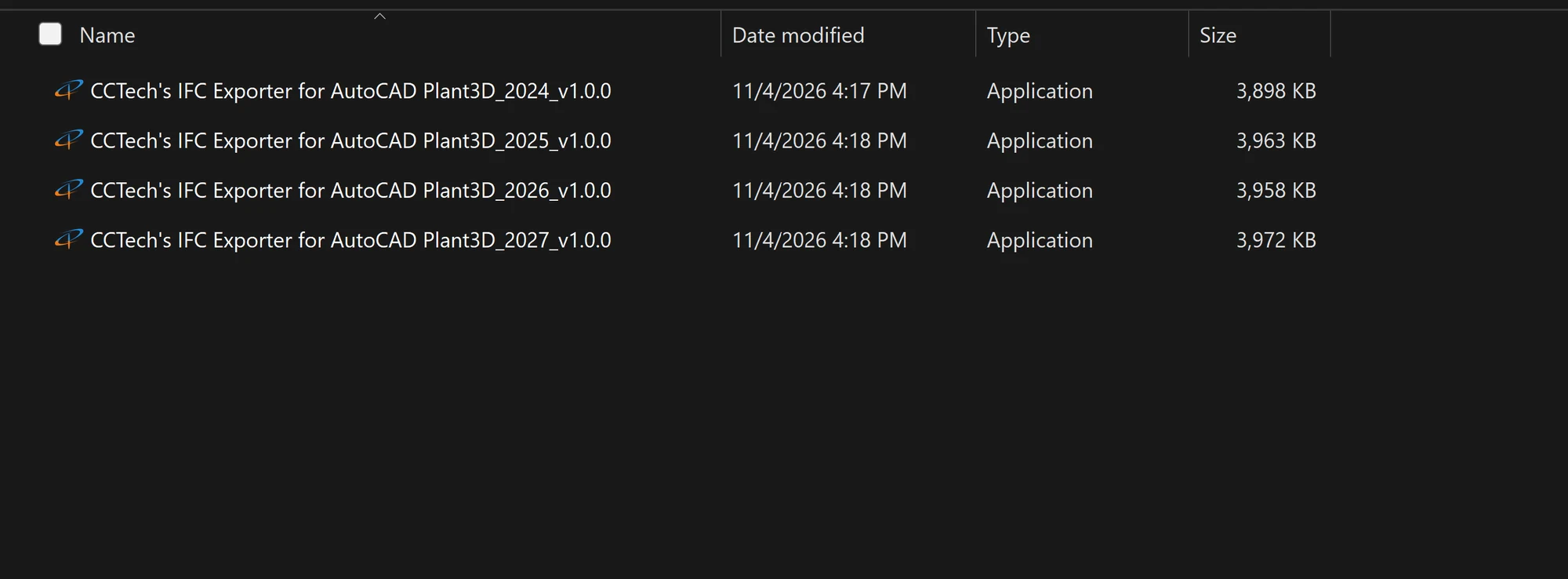
Figure 1: CCTech's IFC Exporter for AutoCAD Plant 3D installer files (one per Plant 3D release).
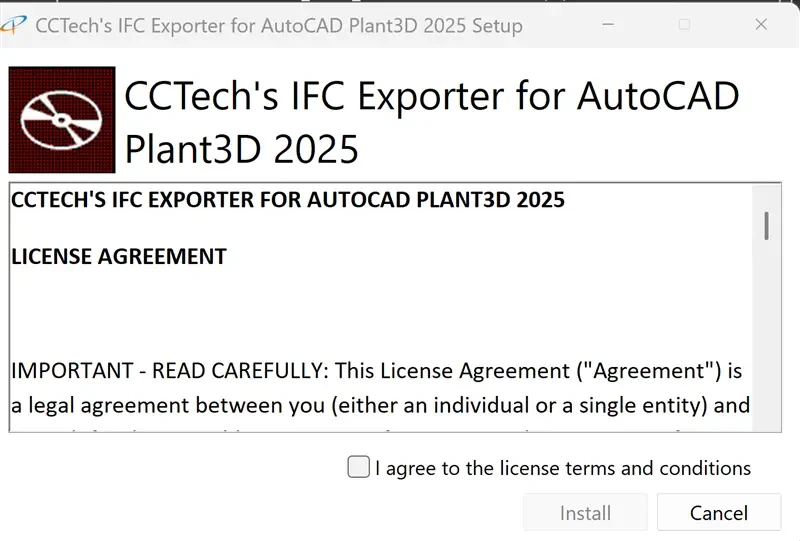
Figure 2: Accept the license agreement, then click Install.
The exporter is installed as an AutoCAD application plug-in:
C:\Program Files\Autodesk\ApplicationPlugins\Plant3DIfcExporter{Year}.bundle
(for example, Plant3DIfcExporter2025.bundle). Restart AutoCAD
Plant 3D if it is open during installation.
Uninstall
Alternatively, run the same installer again. On the Modify Setup screen, click Uninstall and complete the wizard.
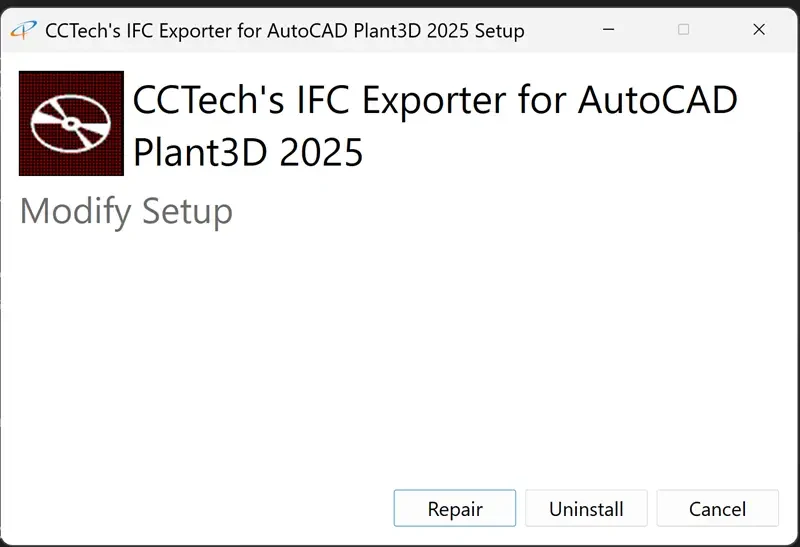
Figure 3: Modify Setup: choose Uninstall to remove the exporter.
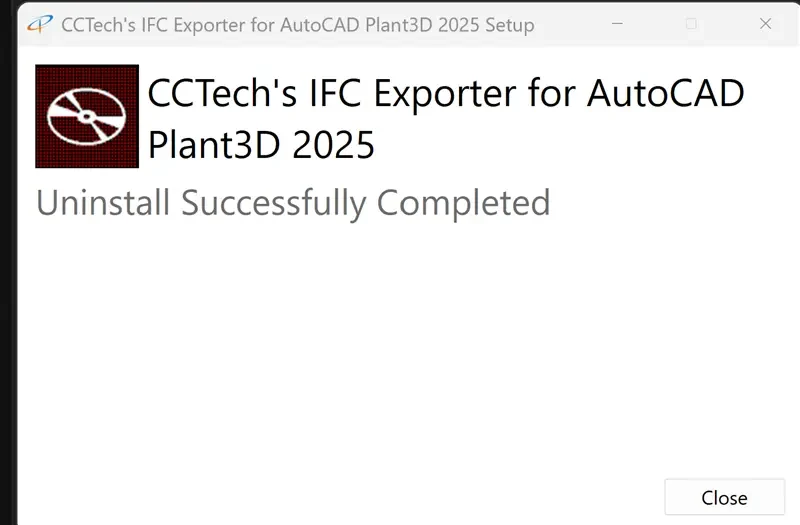
Figure 4: The exporter is successfully uninstalled.
Export to IFC
This section describes how to export the active drawing using the Export to IFC dialog.
Launch the exporter
IFCEXPORT).
The Export to IFC dialog opens.
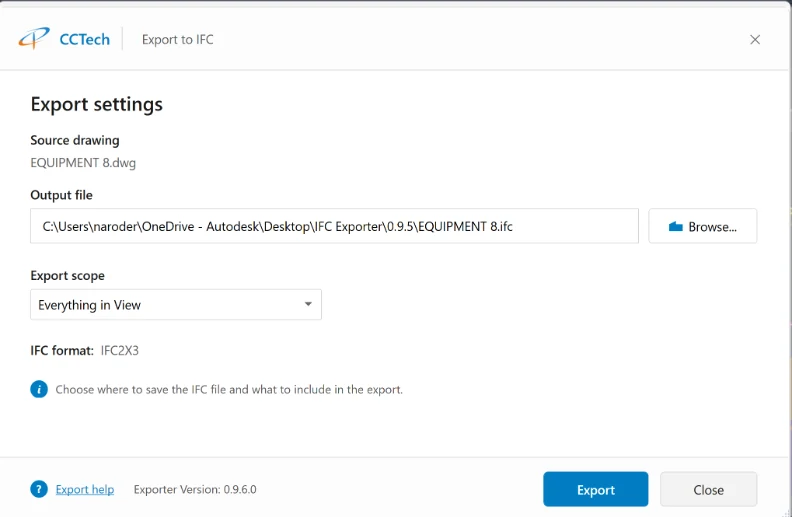
Figure 5: Export to IFC: export settings dialog.
Export settings
Configure the following fields before you click Export.
| Field | Description |
|---|---|
| Source drawing | Read-only name of the active .dwg file being exported. |
| Output file | Full path for the .ifc file. Use Browse… or edit the path directly. The exporter remembers the last folder in %APPDATA%\CCTech AutoCAD Plant 3D IFC Exporter\last-output-directory.txt. |
| Export scope | Controls which model content is included (see below). |
| IFC format | Displays the schema used for this release: IFC2X3. |
An info line under the settings summarizes the task: Choose where to save the IFC file and what to include in the export.
To export: open a Plant 3D drawing with your model, choose an output .ifc path with Browse… or by editing the file name, then click Export to create an IFC2X3 file at that location.
For help and support, click the question-mark icon (bottom-left) to open the Help menu. It lists:
If a Help page is not configured in your build, the dialog shows a message instead of opening a page.
Export scope
Use Export scope to limit what is written to the IFC file.
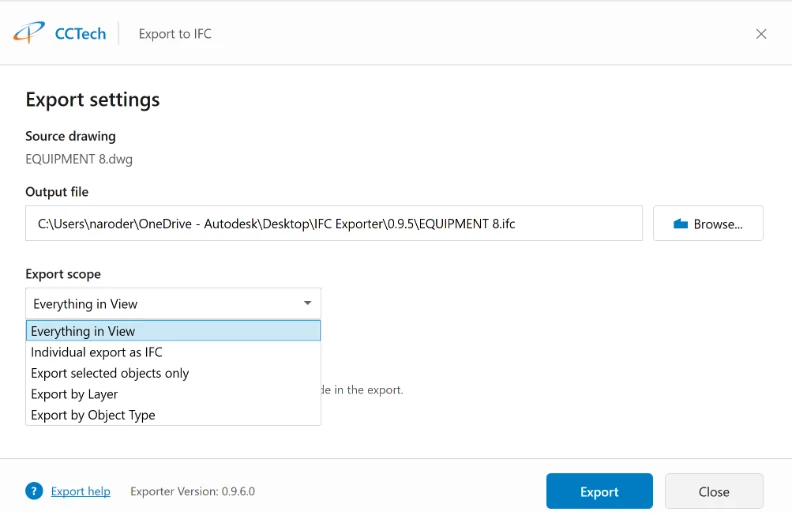
Figure 6: Export scope options.
| Scope | When to use it |
|---|---|
| Everything in View | Export all exportable Plant 3D (and supported non–Plant 3D solid) content in the current drawing context. Default choice for full-model exports. |
| Individual export as IFC | Create one IFC file per exportable object in a folder next to the chosen output path. Use for object-level delivery or debugging. Cannot be combined with layer, object type, or selection filters. |
| Export selected objects only | Export only Plant 3D objects you pick in the drawing. Click Select objects when this scope is active. If nothing is selected, the exporter prompts you to select objects before exporting. |
| Export by Layer | Export objects on one or more layers. Click Select layers and choose from the list. Only layers that contain objects are listed. Selected layers are combined into one IFC file. |
| Export by Object Type | Export only chosen Plant 3D part kinds (for example, Pipe, Heat Exchanger, Grating). Check the types to include. Selected types are combined into one IFC file. |
Run the export
When export succeeds, the .ifc file appears at the path you specified. For Individual export as IFC, a folder is created containing multiple .ifc files (one per exported object). Click Close to exit the dialog without exporting it again.
Review export results
Open the IFC file
Export log (.plant3dtoifc.log)
For each export, a detailed text log is written next to the output IFC
file, with the same base name: YourDrawing.ifc →
YourDrawing.plant3dtoifc.log. The log includes:
Wrote IFC2x3 file to '…'
Use this log to diagnose skipped entities, empty exports, or performance
questions. Some builds also produce an HTML summary report
(*.ifc.log.html) alongside the IFC file for entity counts and
warnings.
Supported content
The exporter targets Plant 3D objects and related 3D content, including:
Objects that are not Plant 3D, solids, or eligible block references are skipped and listed in the log (for example, standalone LINE or POINT entities).
Troubleshooting
| Message or situation | What to do |
|---|---|
| No objects were selected for export | Choose Export selected objects only, click Select objects, pick Plant 3D objects, then export again. |
| No layers were selected for export | Choose Export by Layer, select one or more layers, then export again. |
| No exportable object types found | Open a valid Plant 3D drawing with exportable content or change scope to Everything in View. |
| Individual export as IFC cannot be combined with a filtered export scope | Use Individual export as IFC alone, or switch to a single-file scope (view, selection, layer, or object type). |
| Export cancelled: no exportable geometry was found | Nothing in scope could be exported. Widen scope or check the log for skipped objects. |
| IFC export failed: None of the selected objects could be matched… | Selection did not match exportable Plant 3D elements. Clear Selection Filter, re-select, or use Everything in View. |
| Please select an output IFC file path | Set Output file to a valid .ifc path with Browse…. |
| Exporter tab or command missing | Confirm that the installed exporter matches your Plant 3D release (2024, 2025, 2026, or 2027), reinstall the bundle, and restart Plant 3D. |
Advanced commands (optional)
These AutoCAD commands are registered with the plug-in for diagnostics and
automation. End users typically only need IFCEXPORT.
| Command | Purpose |
|---|---|
IFCEXPORT | Opens the Export to IFC dialog (recommended). |
PLANT3DTOIFC | Runs export workflow from the command line (same core engine as the dialog). |
PLANT3DTOIFC_GATHER | Collects and logs plant elements without writing a full IFC file. |
IFCCOUNT | Prints an inventory of Plant 3D geometry in the drawing (no IFC file created). |
PLANT3DTOIFC4 | Reserved for IFC4-related development; the UI currently targets IFC2X3. |